- TFBLB1661V_P#TFBLB1661VP
View Speed Ultra 5G
View Speed Ultra 5G
Out Of Stock
{{smartPay-price}}
price is #priceDollar dollar and #priceCent cents
View Speed Ultra 5G
View Speed Ultra 5G
Out Of Stock
Approved For {{smartPay-price}}/mo #term Monthly payments
price is #priceDollar dollar and #priceCent centsWas priced at #listPriceDollar dollars and #listPriceCent cents now priced at #priceDollar dollars and #priceCent cents
Retail Price
This item is for pre-order only.
Ships by release date
Dark Gray
{{skuColors-color}}
Choose payment option


Choose purchase type
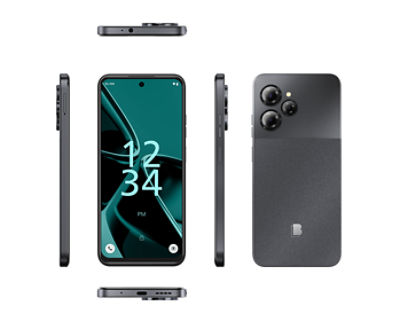
-

OS
Android -

FCC Certification Id
YHLBLUB1660V -

Network
5G: sub6-gHz and C-Band -

Dimension
6.59” x 3.03” x 0.35” -

Display
6.67 inch HD+ 90Hz, 720x1600, 263ppi -

Camera
Rear Camera: 50MP Main + 2MP Super Macro + 2MP Depth Sensor | Front Camera: 8MP -

Battery
5000mAh -

Bluetooth
Bluetooth v 5.0 -

Processor
MediaTek Dimensity 6300, 6nm, ARM Cortex-A76, 2.4GHz Octa-Core -

Hearing Aid
HAC 2019 -

Memory
64GB Internal storage, 4GB RAM, MicroSD Slot for Expandable Storage up to 256GB (Sild Seperatly) -

Weight
7.19 oz -
pSIM
-
Side-Mounted Fingerprint Sensor, PIN, Password, Pattern
-
Yes
To turn your phone into a mobile Wi-Fiwifi® hotspot, follow these steps:
- If Wi-Fiwifi is enabled on your phone, turn it off by sliding the status bar down from the main screen. Slide it down again to see more options.
- Tap the "Wi-Fiwifi" icon to turn Wi-Fiwifi "Off."
- Locate and tap the "Mobile Hotspot" icon to turn your Mobile Hotspot ON.
Directions on connecting other devices to your hotspot will display on your screen, including the network name and password. You will now be able to connect your devices to this network just as you would any Wi-Fiwifi network.
To change the network name or password from the main screen, follow these steps:
- Slide the screen up to display your apps.
- Locate and tap the "Settings" icon.
- Tap "Connections."
- Tap "Mobile Hotspot and Tethering."
- Tap "Mobile Hotspot."
- Note: If necessary, tap "Configure."
- Tap the appropriate text field and enter the desired network name or password.
- Tap "Save."
While not completely necessary, the benefits of adding a Gmail or Google account to your device include the following:
- Automatic backup of device data
- Access to the Google Play Store
- Access to Gmail email account
- Access to Google Drive
- Access to Google Calendar
- Saved locations in Google Maps
- Improved location accuracy for apps
- "Find My Device" security feature
If you are activating your phone for the first time, you will see a prompt to either add an existing Google account or create a new one. Follow the instructions that appear on the screen to set up your account.
If you have set up your phone without activating a Google account, you can add an account at any time. To add a Google account, follow these steps:
- From the main screen, tap the "Google" folder.
- Tap the "Gmail" icon.
- Note: The first time you use this application, you may have to allow access to other apps or features on the device. If prompted, tap the desired permission option(s).
- If necessary, tap "GOT IT" to continue.
- Tap "Add an email address."
- Tap "Google" as your email provider.
- Tap the "Email or phone" field to add an existing account. Then, follow the prompts on your screen.
- To create an account, tap "Create account" and follow the prompts on your screen.
Your Galaxy device camera comes with Intelligent features such as "Shot suggestions" to help you set up the perfect shot. Suggestions will be displayed on the screen and, once followed, the camera will automatically capture the perfect photo. To enable and use "Shot suggestions," follow these steps:
- From the main screen, tap the "Camera" icon.
- You can hold your phone horizontally or vertically for photos and videos. Tap the "Quick Settings" icon indicated by four dots. Then, tap the "Settings" icon.
- Tap "Shot suggestions" to toggle the slider on/off.
- Press the BACK key to exit the "Settings" menu.
- Aim your phone, then pause when the subject is visible on your screen. The "Best shot" icon will appear on your screen, indicating the ideal shot for your subject.
- Once the icon is centered on your screen, your camera will automatically capture the image and save it in the "Gallery" app.
Google's "Find My Device" feature is automatically enabled when you sign in to your Google (Gmail) account on your phone.
To use "Find My Device" for a lost or stolen phone, follow these steps:
- From the main screen, slide the screen up.
- Locate and tap the "Settings" icon.
- Locate and tap "Google."
- Tap "Find My Device."
- If necessary, tap the slider to enable "Use Find My Device."
- Tap the desired option to locate your phone, then follow the prompts on your screen.
By default, your phone is set to automatically choose the best available network. If your phone is not connected to a network, you may be in an area where service is not yet available or you may also be in an area with poor wireless coverage.
- If you are indoors, try moving closer to a window or the perimeter of the building, or try going outside.
- If changing your location does not solve your problem, try restarting your phone by turning it off and then on again.
NOTE: Not all Networks or Network Services are available on all devices or in all areas.
To verify your network, follow these steps:
NOTE: You must temporarily turn your Wi-Fiwifi Connection to "Off."
- From the main screen, slide the screen up to display your apps.
- Locate and tap the "Settings" icon.
- Locate and tap "About phone."
- Tap "SIM status" or "Status information."
- Then, tap "SIM card status."
- Look under
- "Mobile network state" for your current network state.
- "Mobile voice network type" for your current network type.
To verify your network settings, follow these steps
- From the main screen, slide the screen up to display your apps.
- Locate and tap the "Settings" icon.
- Tap "Connections."
- Tap "Mobile networks."
- Tap "Network operators" or "Network mode."
- " Select automatically" or "Automatic" should be ON.
What's in the box?
- BLU View Speed Ultra 5G
- Activation Card
- USB Cable
- Quick Start Guide
- About your Phone Booklet
Phones We've got them
All kinds. The smartest, the most affordable,
and a whole bunch in between
More Features
The 6.67 inch HD+ screen with a 90Hz refresh rate makes scrolling feel as smooth as gliding on ice.
The 50MP main camera catches the little details - so your memories stay sharp, not blurry.
One touch of the side fingerprint sensor and you are in. Simple. Secure.
1 Legal required - 5G network availability and speed claim, varies by location, requires Verizon-approved language ©2026 (BLU Products, Inc). BLU, BLU BOLD LIKE US, and stylized letters are trademarks of BLU Products, Inc. 1Talk times will vary depending on phone usage patterns and conditions. Battery power consumption depends on factors such as network configuration, signal strength, operating temperature, features selected, vibrate mode, backlight settings, browser use, frequency of calls and voice, data, and other applications usage patterns. LTE is a trademark of ETSI. Android, Google Play and other marks are trademarks of Google Inc.
2 microSD is Sold Seperatly
3 HAC, WEA and FCCID Information: disclosures state

{{itemname}}
{{prop1}}
{{prop2}}
{{itemprice}} [x{{itemquantity}}]
{{itemname}}
{{prop1}}
{{prop2}}
{{itemprice}}
