- TFSAS546VC_P#TFSAS546VCP
Out Of Stock
{{smartPay-price}}
price is #priceDollar dollar and #priceCent centssmart pay logo
Out Of Stock
Approved For {{smartPay-price}}/mo #term Monthly payments
price is #priceDollar dollar and #priceCent centsWas priced at #listPriceDollar dollars and #listPriceCent cents now priced at #priceDollar dollars and #priceCent cents
Retail Price
smart pay logo
This item is for pre-order only.
Ships by release date
{{skuColors-color}}
Choose payment option


Choose purchase type
Google's "Find My Device" feature is automatically enabled when you sign in to your Google (Gmail) account on your phone.
To use "Find My Device" for a lost or stolen phone, follow these steps:
- From the main screen, slide the screen up.
- Locate and tap the "Settings" icon.
- Locate and tap "Google."
- Tap "Find My Device."
- If necessary, tap the slider to enable "Use Find My Device."
- Tap the desired option to locate your phone, then follow the prompts on your screen.
The benefits of adding a Samsung account to your device include the following:
- Automatic backup of device data
- Access to your Samsung Internet booksmarks and settings
- Access to the Galaxy Store
- Full Bixby integration
- "Find My Mobile" security feature
- Samsung Pay
- Samsung Gear
- Samsung Pass
- Samsung SmartThings
- Samsung Health
To add a Samsung account to your new device, follow these steps:
- From the main screen, slide the screen up.
- Locate and tap the "Settings" icon.
- Tap "Samsung account."
- To sign in to an existing account, enter your account email address or phone number. Otherwise, tap "Create account" and follow the on-screen instructions.
- Tap "Sign in."
- Review the terms and conditions as needed, then tap "Next."
- Your account information will be displayed. If necessary, tap the information you would like to update and make your changes. Otherwise, you're all set.
Once you have set up Samsung Wallet or Samsung Pay on your Galaxy phone, you can use it as payment at many of your favorite local businesses. For step-by-step instructions on how to setting up Samsung Wallet, click here.
To use Samsung Wallet, follow these steps:
- From the main screen, slide the screen up.
- Tap the search bar, enter "Wallet."
- Tap the "Wallet" icon.
- Tap the card you would like to use.
- Authorize the payment using your select authentication method such as your fingerprint or entering your PIN.
- Hold your phone over the card reader until the transaction is complete. A notification will appear that the transaction was complete.
To access Samsung Wallet when your screen is locked, you can use "Quick Access." To enable this feature, follow these steps:
- From the main screen, slide the screen up.
- Tap the search bar, enter "Wallet."
- Tap the "Wallet" icon.
- Tap the "Settings" icon.
- Tap "Quick access." Then, tap the slider(s) to the "On" position to enable or disable for each screen view option.
- You can now use Samsung Pay from the "Lock screen", "Home screen", and/or "Screen off."
To use Samsung Wallet or Samsung Pay, you will need to be signed into your Samsung account. If you do not already have a free Samsung account, tap "Create account" and follow the on-screen prompts. If necessary, enter your login information and tap "Sign in."
To set up Samsung Wallet, follow these steps:
- From the main screen, slide the screen up.
- Tap the search bar, and enter "Wallet".
- Tap the "Wallet" icon.
- Sign into your Samsung Account.
- If you do not have a Samsung Account, you can create one now.
- Once you are logged into your Samsung Account, tap "Start." Then, tap "Next" after reading the terms and conditions.
- Follow the prompts on the screen to set up your verification method, such as finger print or PIN.
- Create a 4-digit PIN.
- Tap "Add card" or "Add."
- Tap "Payment cards." Then, tap the "plus" icon.
- Follow the prompts on the screen to add your card. To add more cards, repeat steps 8 - 10.
To turn your phone into a mobile Wi-Fiwifi® hotspot, follow these steps:
- If Wi-Fiwifi is enabled on your phone, turn it off by sliding the status bar down from the main screen. Slide it down again to see more options.
- Tap the "Wi-Fiwifi" icon to turn Wi-Fiwifi "Off."
- Locate and tap the "Mobile Hotspot" icon to turn your Mobile Hotspot ON.
Directions on connecting other devices to your hotspot will display on your screen, including the network name and password. You will now be able to connect your devices to this network just as you would any Wi-Fiwifi network.
To change the network name or password from the main screen, follow these steps:
- Slide the screen up to display your apps.
- Locate and tap the "Settings" icon.
- Tap "Connections."
- Tap "Mobile Hotspot and Tethering."
- Tap "Mobile Hotspot."
- Note: If necessary, tap "Configure."
- Tap the appropriate text field and enter the desired network name or password.
- Tap "Save."
What's in the box
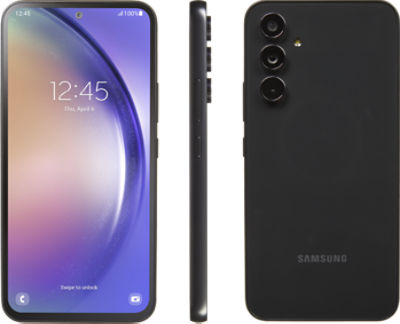
- Samsung Galaxy A54 5G
- USB Charging Cable
- Quick Start Guide
Phones We've got them
All kinds. The smartest, the most affordable,
and a whole bunch in between
More Features
Satisfy your curiosity on the spot with Circle to Search with Google.
Brilliant sunrises, awesome selfies — capture incredible content with Galaxy A54 5G. Snap clear images with Single Take and OIS, and even take shots in low light with Nightography.
Always be ready for an impromptu photo op or newly released video with a powerful battery that has your back.
Play games and watch videos at full throttle with a powerful processor and virtually lag-free 5G.
Live your best life with the tough and trendy Galaxy A54 5G — built with sleek Gorilla Glass 5 on the front and back and IP67 rated to resist water and dust.
Video chat with friends and family using Google Meet. Easily share photos and files with Quick Share. Effortlessly connect to your Galaxy Buds with Easy Pair. Life is made simple with Galaxy.
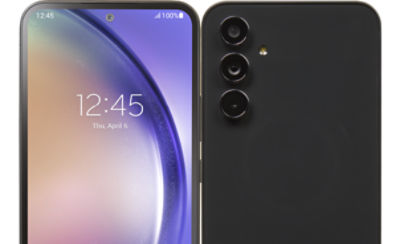
View all your favorite shows, games and memories in clear detail with the fluid and bright display of Galaxy A54 5G.

{{itemname}}
{{prop1}}
{{prop2}}
{{itemprice}} [x{{itemquantity}}]
{{itemname}}
{{prop1}}
{{prop2}}
{{itemprice}}
